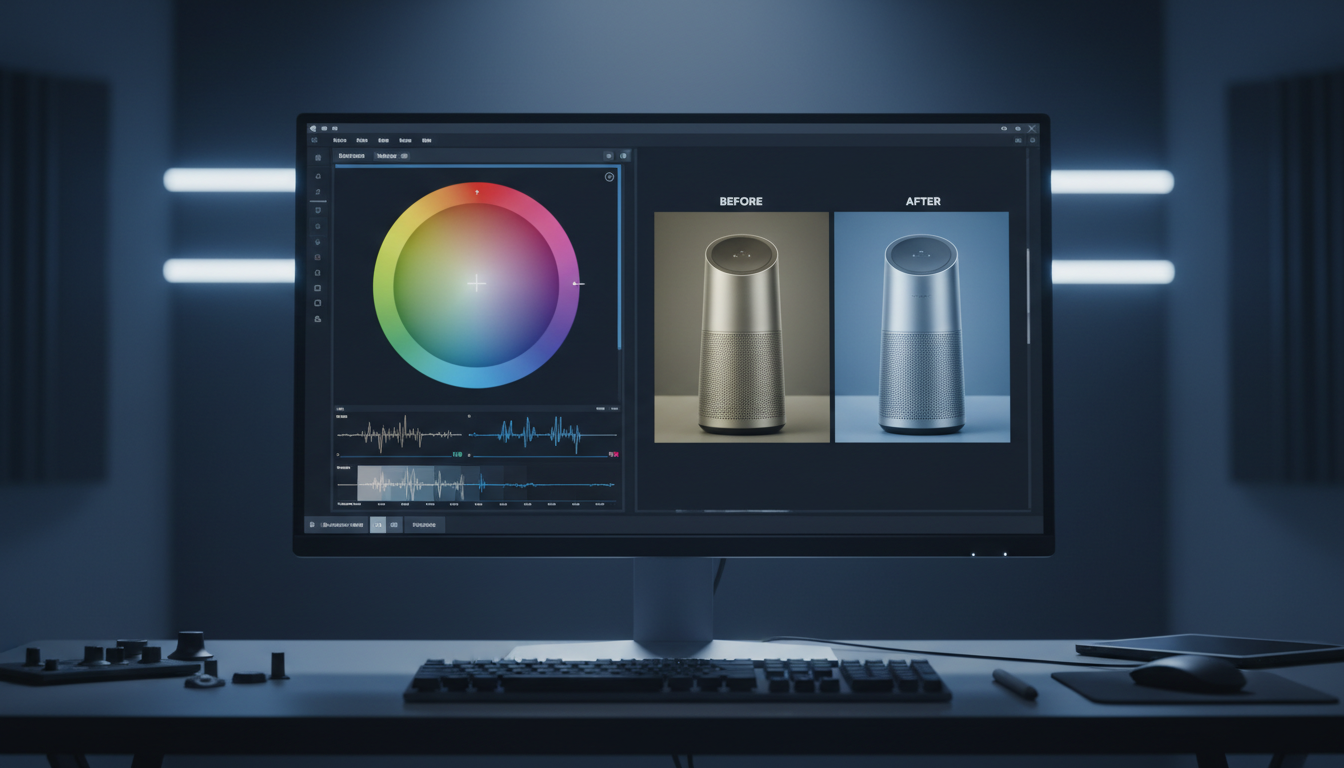
Mastering the Image Workspace: A Deep Dive Into LinkFlimAI Production Tools

1. The Image Crop & Editor Tool
What is Image Crop?
LinkFlimAI’s Image Crop is a manual-first selection and framing interface connected directly to our broader generative workflow. Instead of relying on an algorithmic automated process that guesses how an image should be framed, it provides an open canvas layout—as visualized in image_05830a.jpg—where you manually map out aspect ratios, composition guidelines, and target pixel coordinates.
Why use Image Crop?
You use this tool to maintain strict, uncompromised control over composition layout boundaries. Most automated cropping features slice through text or isolate heads incorrectly because they lack project-specific context. This interface allows you to explicitly define bounding boxes, ensuring that when you feed an image into subsequent nodes, the system processes exactly what you intended down to the pixel.
Core Use Cases of Image Crop
- Granular Composition Adjustments: Isolate specific visual elements—such as separating a subject from background components—before passing the asset into a modifier node like AI Retouch to "remove the facemask from middle."
- Aspect Ratio Standardization: Manually force asset inputs into industry-standard deliverables (such as 16:9 or 1K structures) while visually verifying that no critical subject layout attributes are cut off.
- Pre-Processing for Multi-Model Chains: Pre-cropping a rough generated file to clean up its global framing before sending it directly to secondary enhancement, upscaling, or editing steps.
Weaknesses of Image Crop
- No Automated Magic Framing: It does not feature a one-click automated button that guesses your framing layout; it relies entirely on direct user bounding box adjustments and node routing.
- Dependent on Input Asset Quality: Cropping deeply into a low-resolution or underexposed file will naturally highlight pixel degradation until it is manually passed through a corrective model like the Image Upscaler.
Why choose our Image Crop?
Because we do not hide the layout mechanics behind a black box. As highlighted in image_05830a.jpg, our canvas features a connected node workflow. The crop tool is not an isolated component; it links directly to your generation configurations, custom models (such as Nano Banana 2), and active format outputs. It treats cropping as a precise engineering step in an integrated creative pipeline.
2. The Image Relight Tool
What is Image Relight?
Image Relight is a spatial-aware editing technology that recalculates lighting vectors, shadow directions, and color gradients across an existing visual asset [cite: 2]. Rather than applying a flat global exposure overlay, it maps the structural geometry of the image, enabling users to place virtual illumination sources anywhere within a three-dimensional layout coordinate system after generation [cite: 2].
Why use Image Relight?
Standard global adjustments often wash out fine colors, blow out highlights, or introduce heavy digital artifacts into shadow fields [cite: 2]. An AI-driven relighter bypasses these limitations by offering specific technical advantages:
- Pixel-Level Texture Preservation: It isolates fine details while accurately rendering the natural, realistic falloff of custom illumination [cite: 2].
- Total Mood Reconstruction: Change the atmospheric tone of any asset immediately—such as altering a flat indoor environment into a warm, balanced daylight configuration [cite: 2].
- Production Volume Uniformity: Enforce uniform shadow mapping and identical color profiles across multiple distinct visual assets or catalog variants [cite: 2].
Core Use Cases of Image Relight
- E-Commerce Catalog Standardization: Elevate baseline or unpolished product photography by adding precise directional lighting to highlight surface textures and manage reflections [cite: 2].
- Portrait & Headshot Adjustment: Correct problematic overhead or backlit shadows on corporate or character headshots using clean studio lighting profiles [cite: 2].
- Environmental Compositing: Ensure visual cohesion when dropping subjects into new backgrounds by matching environmental illumination grids onto the asset [cite: 2].
Weaknesses of Image Relight
- Flat Exposure Bleed: Lower-tier processing models can struggle to cleanly segment intricate subjects from backgrounds, occasionally leaking light onto incorrect layout layers [cite: 2].
- Edge Artifacting: Processing poor geometric layouts can leave slight, noticeable halos around fine structures like loose hair fibers or transparent fabrics [cite: 2].
- Requires Manual Configuration: To achieve optimal professional grading, users must manually configure direction axes, intensity levels, and environmental values rather than relying on one-click solutions.
Why choose our Image Relight?
LinkFlimAI eliminates standard legacy compromises by providing a highly granular 3D workspace engine built for precise lighting manipulation [cite: 2]:
- Comprehensive Key Light Controls: Instantly position your primary lighting source across explicit Top, Bottom, Left, Right, Front, and Back directions [cite: 2].
- Advanced Rim Light Engineering: Add clean edge separation. The Rim Light feature dynamically locks to rear projection points, activating automatically when key lights are placed at 45-degree angles [cite: 2].
- Dual-View Geometric Tracking: Switch easily between a standard Front preview and a Perspective layout to trace exactly how light rays interact with the visual grid [cite: 2].
- Granular Atmospheric Adjustments: Dial in specific values via a Brightness meter (0–100%) paired with a precise Color Temperature slider calibrated up to 5600K for cold or warm balance [cite: 2].
3. The Image Generator Tool
What is Image Generator?
The Image Generator is a multi-model text-to-image canvas interface that bridges raw linguistic prompts into high-fidelity graphic assets. Operating via an open node structure, it allows creators to choose between multiple dedicated visual models depending on the specific aesthetic or detail density required for the campaign.
Why use Image Generator?
Traditional image generation platforms restrict users to a single proprietary algorithm, meaning if a prompt fails to render correctly, tokens are wasted on repeated regenerations. LinkFlimAI uses an open environment where text, format parameters (such as 16:9, png), and target resolution outputs (such as 1K) are configured manually on a visible workspace node, giving creators an exact, uncompromised starting asset.
Core Use Cases of Image Generator
- Rapid Concept Prototyping: Translate script ideas or visual briefs into tangible reference graphics instantly inside your primary workspace layout.
- Asset Seed Creation: Generate clean base subjects, characters, or textures that are deliberately configured to be fed into downstream crop, relight, or upscaler nodes.
- Multi-Model Comparison: Route a single prompt string into different visual models simultaneously to analyze which architecture matches your required art direction.
Weaknesses of Image Generator
- Prompt Ambiguity: High-end text-to-image engines remain sensitive to language; vague descriptions can yield unexpected geometric variations.
- Token Consumption: Massive, unguided text generation sweeps can quickly deplete compute tokens if users don't manage their workflow setup systematically.
Why choose our Image Generator?
Instead of forcing you to jump between different web subscriptions, LinkFlimAI brings top-tier models together onto a unified canvas [cite: 4]. As mapped in image_05830a.jpg, your generation nodes connect directly to manual file uploads, format drop-downs, and real-time editing tools, allowing you to patch problems instantly without wasting resources on total raw regenerations [cite: 4].
4. The Image Upscaler Tool
What is Image Upscaler?
The Image Upscaler is a resolution enhancement node designed to reconstruct pixel density, sharpness, and fine textures across low-resolution or heavily cropped visual assets. Rather than stretching pixels using standard bilinear interpolation, it utilizes structural neural processing to inject authentic, clean details into the image workspace grid.
Why use Image Upscaler?
When you crop deeply into an asset to adjust composition framing, you naturally lose resolution. The Upscaler is the vital technical counterweight in the pipeline—allowing you to scale assets up to clean production sizes (like 1K or higher) while removing compression artifacts and restoring edge clarity.
Core Use Cases of Image Upscaler
- Post-Crop Restoration: Rebuild the technical quality of tight, manually cropped subject details so they meet high-definition delivery standards.
- Legacy Asset Upgrading: Upscale older, low-resolution marketplace assets or user-generated product imagery into crisp, professional visual deliverables.
- Print Prep Optimization: Enhance digital graphics to extreme sharpness settings before pushing them into large-format physical print matrices.
Weaknesses of Image Upscaler
- Processing Latency: Reconstructing high-fidelity spatial details requires significant computational tracking, making it a high-latency node relative to basic crops.
- Artifact Amplification: If a base asset contains severe visual noise or distortion, an unguided upscaling loop can occasionally misinterpret that noise as intentional structural detail.
Why choose our Image Upscaler?
Because it operates as an explicit, verifiable node inside your canvas. It is fully aware of your upstream layout decisions, allowing you to fine-tune exactly how textures are processed without relinquishing creative control over the final product output.